(Verified) Move SQL Server Database from One Server to Another

Do you want to learn how to move SQL Server database from one server to another server?
You can follow these 2 methods that I am about to explain to you in this blog:
1. Using Copy Database Wizard in SSMS (SQL Server Management Studio)
2. Automated Method: SQL Server Migration Tool
But before moving any further, we will find certain reasons because of which users are looking for solutions to move SQL databases.
- Upgrading to the latest version can be the biggest reason for moving the database of SQL.
- Transferring the entire in-house database to a cloud platform
How to Move SQL Server Database from One Server to another Using SSMS
Suppose, there are 2 servers X & Y and you have to copy your SQL server database from X Server to Y Server, then perform the following steps:
Step-1: Launch “SQL Server Management Studio” and connect to Server X.
Step-2: Right-click on the database >> click on “Tasks” >> click on “Copy Database”.
Step-3: A screen will appear. Click on “Next”.
Step-4: Enter the name of the Source server, in this case, it is “Server A”. Then, select the Server Authentication mode and click on “Next”.
Step-5: In the same way, enter the Destination server name (in this case it is “Server B”) and authentication details and click on “Next”.
Step-6: Now select the “Use the SQL Management Object method” option and click on “Next”.
Step-7: Now under “Select Databases”, 2 options are given: “Move” and “Copy”. As all the databases are listed you can select the ones you want to move to another server. Select whether you want to copy or move the database. Then, click on “Next”.
Step-8: Now you can check the MDF file and log file path on the destination system.
Step-9: Click on “Next”.
Step-10: If the copy fails, enter log events. Here, two options will be provided to you: “System event view” and “Local path”. Next, click and select “Windows event log” and then press the Next button to continue.
Step-11: Select “Run immediately” to run or schedule the run >> click on “Next”.
Step-12: Verify all the options and click on “Finish”.
Status progress will appear.
Step-13: After successful completion of the process, close the windows and refresh the Server Y database node. Now you can see your SQL Server X database that you moved is there with all the data in Server Y.
I hope this method helps you. But these methods have its limitation like:
- Eats your precious time especially if you are dealing with a large SQL Server database.
- Requires high technical assistance. A person who is performing the process needs to be an expert. Else, you can lose your data.
- High chances of errors in dealing with moving large databases.
Professional Method: SQL Server Migration Software
Why this tool?
- It is a fast, reliable, and error-free solution that does not need a technical person to operate and provides both offline & online modes of migrating the records or schema or both. The next section holds the features of the tool:
- Move database from a live SQL Server to another live SQL Server (online to online).
- You can also move the database from Offline MDF File to Live SQL Server (offline to online).
- Move Online / Offline SQL Server databases to SQL Transcript File (online to offline and offline to offline).
- Option to select objects to move, objects like Tables, Functions, Views, Stored Procedure, Triggers, etc.
- You can move SQL Server data and schema via the “With Schema & Data” option OR only SQL Server database Schemas using the “Migrate Only Schema” option.
- Move data into any existing database as a destination or create a new database.
- Offers Advance Scan Mode to repair damaged SQL Server database and move it to a new destination.
- Functions with all the SQL Server Versions like 2019, 2017, 2016, 2014, 2012, 2008, 2008 R2, etc.
How to Move SQL Server Database from One Server to Another – Authentic Approach
There are basically 4 steps to run the tool:
Step-1: Select the mode of migration- Online or Offline

Step-2: Do authentication and select database
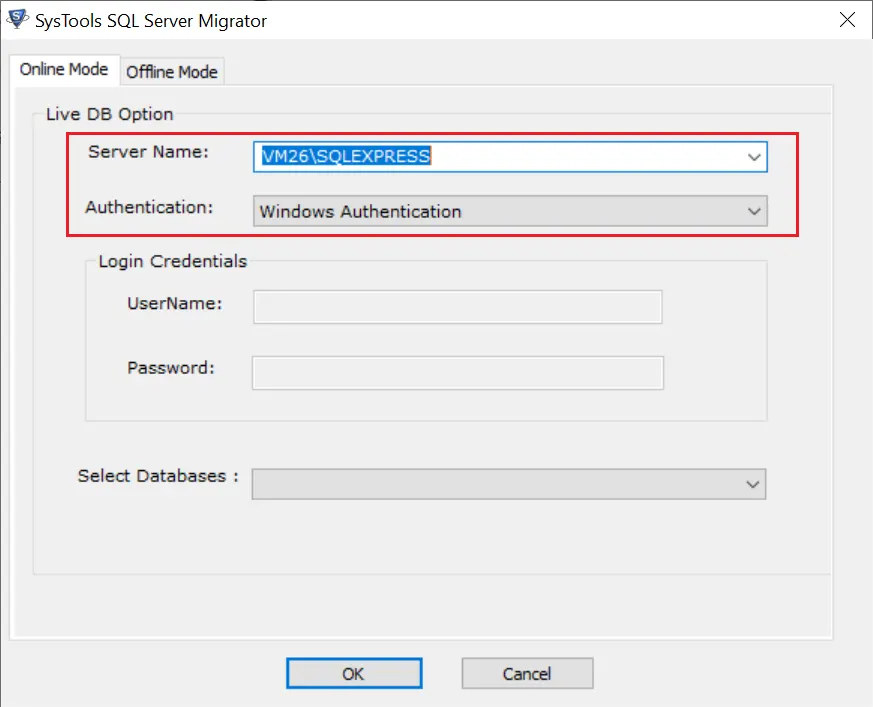
Step-3: The tool will show you the preview of the selected SQL database objects and records.

Step-4: Next, choose whether you want to move the SQL data to server or SQL Server compatible scripts. Choose whether you want to create a new database or move to an existing database. You can also choose data and schema or only schema. After selecting all desired choices, click on “Export”.

Conclusion
In this article, you have learned how to move SQL Server database from one server to another server using 2 different methods.
The first involves SSMS (SQL Server Management Studio), however, it has its own shortcomings.
For fast, reliable, error-free transfer of SQL server databases choose the automated Tool.
 English
  Deutsch
  Español
  Français
  Italiano
  日本人
日本人 