How to Fix Microsoft Outlook Error Code 0x800ccc0e?

The most common error that any user has faced in MS Outlook, Outlook Express, or other similar email clients is 0x800CCC0E. This error usually occurs while performing email communication. So, in this article, we are going to get rid of the Error Code 0x800ccc0e.
When does Outlook Error 0x800ccc0e Occur?
After encountering this, it is always advised to know why it has appeared and how to overcome it. Outlook error 0x800ccc0e happened when there is a problem with Microsoft Outlook, Outlook Express, or Windows Mail. This error is generally caused by a conflict between SMTP servers while using an email program or when users try to send emails during account configuration.
A few of the other reasons are also provided in the following section.
This may help you: Ultimate solution to fix IMAP error code 0x800cccdd
Causes of Outlook Error 0x800ccc0e
The 0x800ccc0e Outlook error indicates that there is an issue between the connection between the mail server and Outlook. The reason may include incorrect settings of the server, network issues or even interference of an antivirus. This code is commonly displayed when you attempt to send and receive your emails. Here are some potential causes:
1. Connectivity Network Problems: Unstable or low-quality internet connection may fail to enable the Outlook mail to connect to the mail server.
2. Wrong Server Configuration: Wrong port numbers or server (IMAP, SMTP or POP3) addresses may result in connection errors.
3. Interference via Antivirus or Firewall: Certain security programs may block the connection of the Outlook to the mail server.
4. Authentication problems: Outlook may fail to log in your account into your server.
5. Corrupt Outlook Profile or Data File: Corrupt Outlook profile or data file (.pst or .ost) can be the reason to have many errors in Outlook, including 0x800ccc0e.
6. Exchange, POP, or IMAP: The error might arise with other kinds of email account (Exchange, POP, IMAP).
7. Synchronization Problems: Outlook may not obtain synchronization of subscribed folders.
How to Fix Outlook Error 0x800ccc0e?
Here in this section, we will discuss some of the methods to fix the error. So go through the section and find out the best solution to fix the error.
1. Connectivity Network Problems:
But ensure that you have a stable Internet connection. Shutdown and restart your modem, router or both. The use of wireless (Wi-Fi) connection could be eliminated in favor of a wired connection.
2. Wrong Server Configuration:
Be sure to make sure that the incoming (POP/IMAP) and outgoing (SMTP) server settings are correct settings with your provider. You should also have the right port numbers and means of encryption (SSL/TLS). As an example, Gmail accepts incoming communications on imap.gmail.com port 993 to use SSL and smtp.gmail.com port 465 to use the SSL, or port 587 to use the TLS, as suggested in Google Help.
How to Change the Settings of the Server
STEP 1
- Open Outlook >> Go to Tools Menu >> Account Settings

STEP 2
- >
- You will see the account setting box in front of your screen.
- Click on E-mail tab >> Email Account

STEP 3
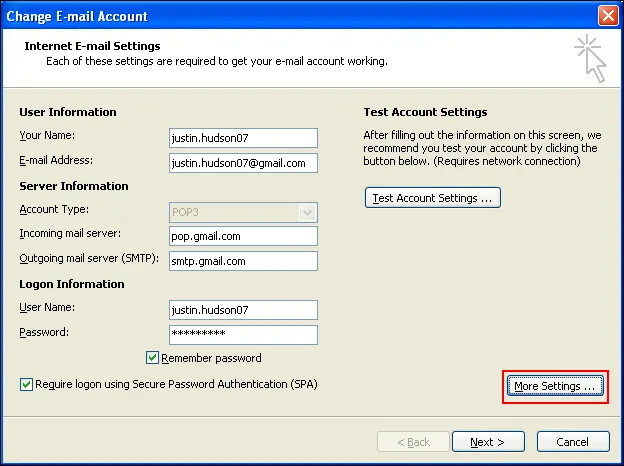
- Email account windows get open. Click on the More Settings button
STEP 4
- As you click on this, another window pops up, the internet E-mail settings.
- Now click on the Outgoing server tab >> Check the server required authentication box.
- At last, click on the OK button to apply the settings

How to Change the Port Number
STEP 1
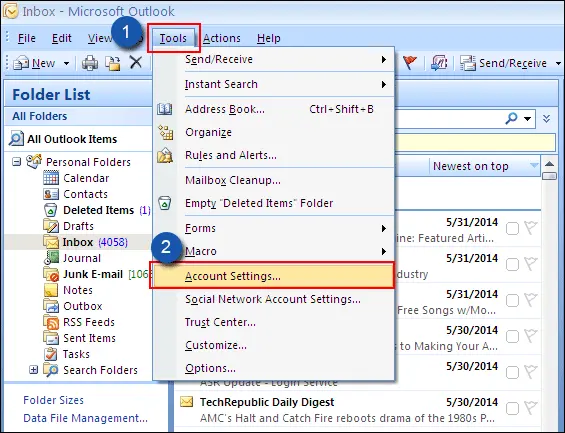
- First and foremost, open Outlook >> Go to Tools Menu >> Account Settings
STEP 2
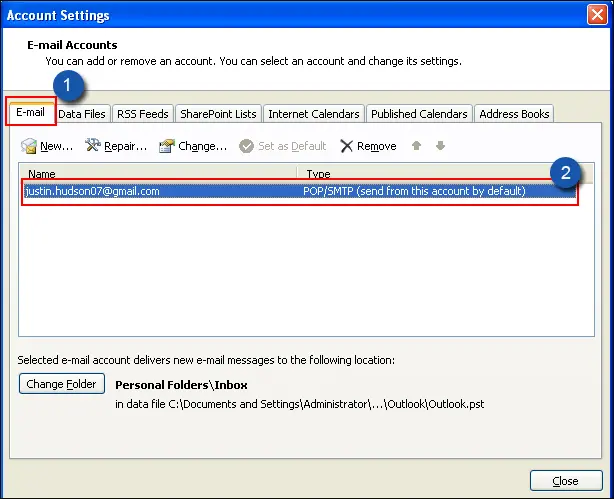
- Secondly, you will see the account setting box in front of your screen.
- Click on Email tab >> Email Account
STEP 3
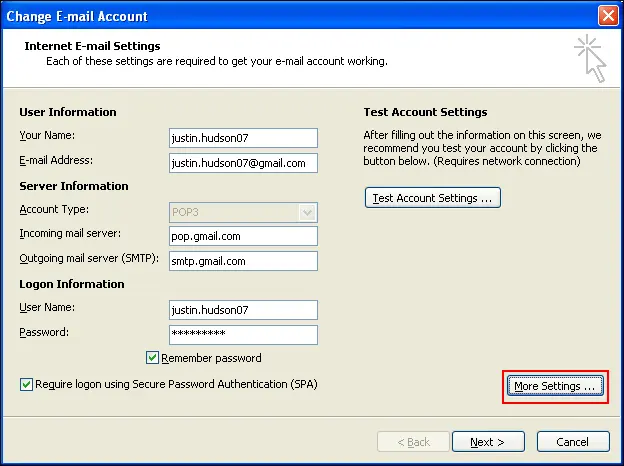
- Change E-mail Account window will then open.
- Click on the More Settings button.
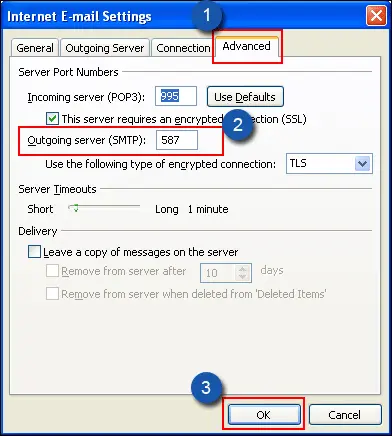
STEP 4
- As you click on this, another window pop up, open internet email settings.
- Next, go to Advanced tab >> Change Outlook server port number to 587
- Furthermore, click on the button Ok to apply the changes
3. Interference via Antivirus or Firewall:
Antivirus programs and the firewalls are able to prevent Outlook accessing the server. See what happens to them, when they are disabled. To do this, configure your firewall or antivirus to permit Outlook connection in case so.
4. Authentication problems:
Make sure that you have entered the right username and password. Sometimes, you might as well have to enable My outgoing server (SMTP) requires authentication.
Specific Example: In case of Gmail, you may be forced to turn on the so-called less secure app access when using an older system of Outlook.
5. Corrupt Outlook Profile or Data File:
Make a new outlook profile. In the case that does not resolve the issue, restore your data file.
How to Resolve Data File Corruption by Using Professional Tool!!
If you are unable to resolve the Outlook error 0x800ccc0e by using the above-described method then download a third-party tool named PST File Recovery Tool. The software will help to repair the corruption of the PST file. So, if the problem happens due to PST file corruption then, it help to resolve error 0x800ccc0e without any data loss.
This solution offers a guaranteed way to get rid of all the errors in a hassle-free manner. Besides this, a demo version is provided to get a better understanding of the functionality. Also, technical support has been set up to assist you without any ifs or buts!
6. Exchange, POP, or IMAP:
Identify the correct settings and troubleshooting procedures of each type of accounts.
7. Synchronization Problems:
Uncheck and check the folders, or fix the . ost file that corresponds to your account.
What If the Problem Persists?
In case the issue persists, it might be because the email server is experiencing some difficulties. Talk to your email company to determine if outage or maintenance is being observed on the email server.
Older solutions might not work after a few updates are applied. Microsoft Community recommends accessing the most current documentation or support to receive the most current advice.
In case you continue to face the error, we recommend visiting support resources that are available at Microsoft or those that are provided by your email provider, recommends Microsoft Support.
Also Read: Cannot Find Outlook PST File
Conclusion
Now, it is time to warp things here in the above blog we have discussed two solutions to fix the Microsoft Outlook error 0x800ccc0e. So, it is your call to choose the right method for you also if you are looking for the reliable solution go for the automated solution.
 English
  Deutsch
  Español
  Français
  Italiano
  日本人
日本人 