How to Convert MSG to EML File Format? Suggested by Experts

In this article, you will find some of the easy and efficient ways using which you will be able to convert MSG to EML file format on Windows and Mac machines.
Microsoft Outlook is the email client when it comes to the arena of the most popular and secure cloud platforms. As we know that MS Outlook mainly works with PST file format, but it also saves the single email, contact, calendar, task, journal, etc. in MSG file format.
On the other hand, EML is the most standard file format that is used by many email clients including Outlook Express, Thunderbird, Gmail, etc. Furthermore, this email client manages and stores the information with all the attachments.
Another Scenario: Top 2 ways to Import MSG files to PST file format
The below article explains all those reasons and methods by which one can easily convert MSG files into EML file format, on both Mac and Windows OS.
Why do Users need to Perform MSG to EML Conversion?
EML has plenty of advantages. Some of the most common scenarios as to why a user needs to convert MSG files into EML format are as follows:
- Easy to Switch Between Email Clients
MSG format is actually a proprietary format to Microsoft Outlook. So, users cannot use this file directly in any other email client. On the other hand, EML is a widely supported file format. Therefore, it is necessary to convert Outlook MSG to EML format in order to use MSG files in popular email clients like Thunderbird, Apple Mail, em Client, Zoho (import feature), etc. - Easy Backup Due to Extensive Support
EML files are easy to backup and view due to its extensive support. So, many organizations often email data backup in EML format. - Platform Independence
MSG files are dependent on Outlook. So, if the platform does not have Outlook installed or it does not support Outlook, the MSG files will be nothing more than a decoration. But EML is supported on all platforms like Linux, Mac and Windows.
How to Convert MSG Files to EML File Format
There are a few methods to perform this conversion. It can be done manually or using third-party professional software. Each method has its own pros and cons. Users can choose what they want after going through these explained methods.
Manually Drag-and-Drop via Outlook on Windows OS
The only manual solution that I can think of is using the Outlook interface and Windows Explorer. So, yes, you must have those emails within Outlook and not already in MSG format on your system.
1. Open Microsoft Outlook and find the .msg file you want to convert.
2. Drag the email from Outlook to a folder on your desktop. It stays as an .msg file.
3. Open that .msg file in Outlook again. Click reply or forward to start a new message.
4. Drag the message from the reply or forward window to a folder in an email program like Windows Mail or Thunderbird that can use .eml files.
Professional MSG to EML Converter for Windows
This conversion can be achieved using the most feasible application namely, MSG File Converter Wizard. So, without any further ado, let us see the steps to convert Outlook messages to EML file format. In addition to this, users can easily perform bulk MSG to PDF Conversion with attachments using this software.
Step 1. Download the MSG to EML Conversion Software into your Windows computer.
Step 2. Use Add File(s) to insert MSG files into the software.

Step 3. Then, look at the preview of the files and press on Export.
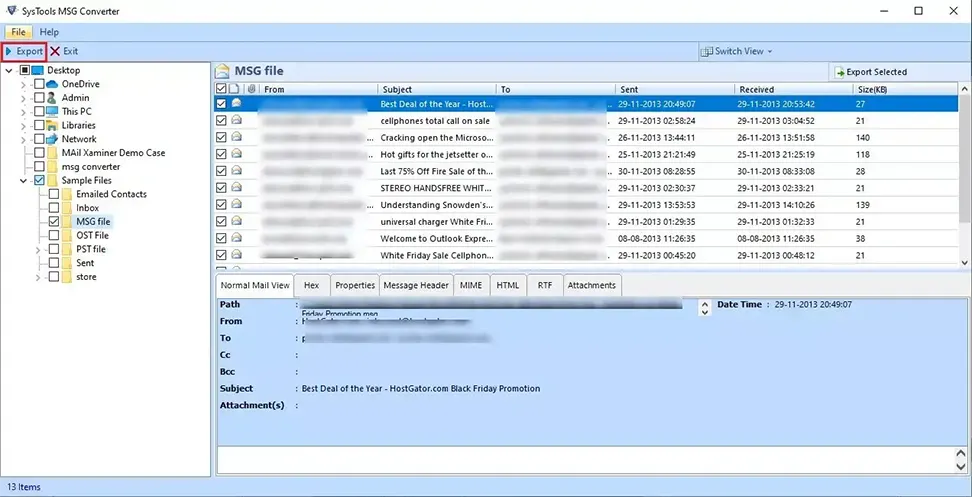
Step 4. In this case, select the type of export as EML.
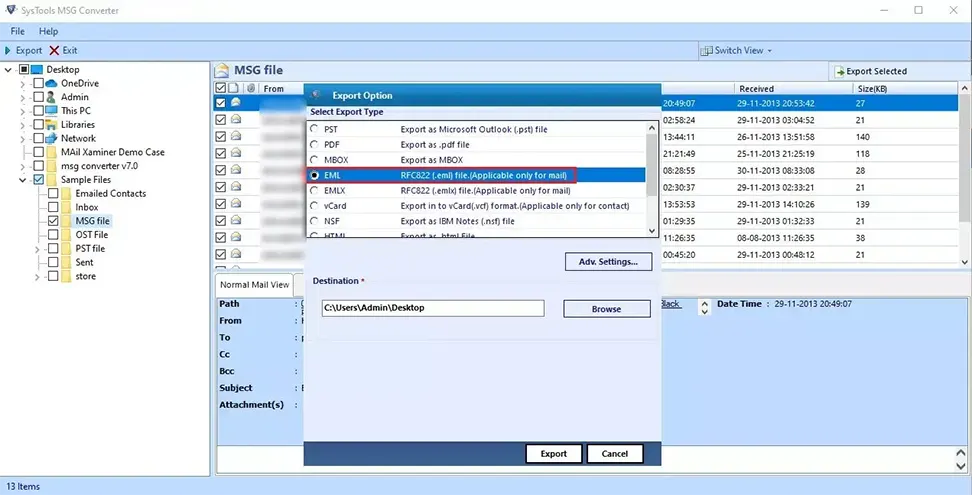
Step 5. Apply the filters by clicking on the Adv. Settings button.
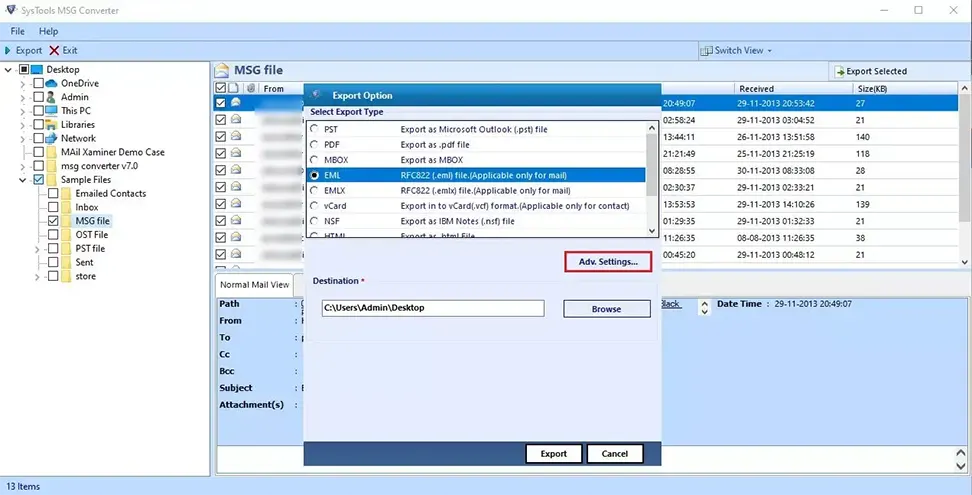
Step 6. Now you can specify the destination location by pressing the Browse button.
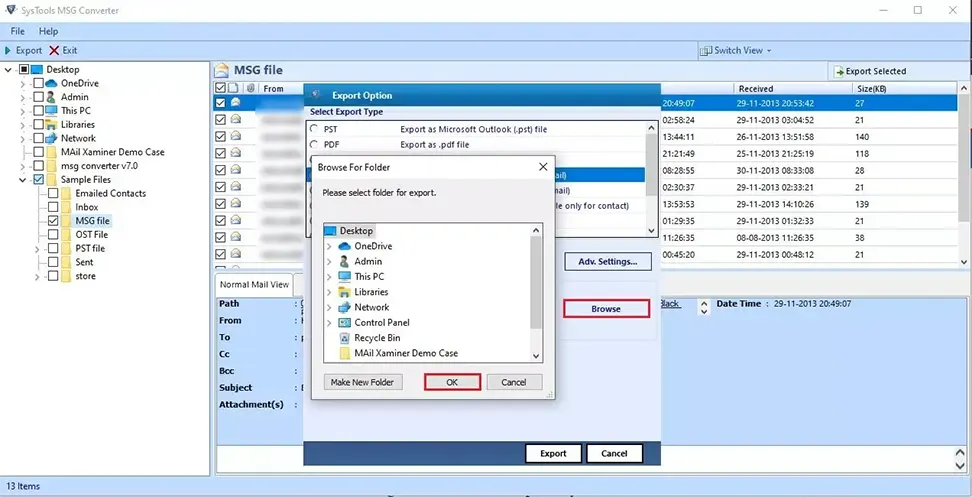
Step 7: In the end, hit the Export button.
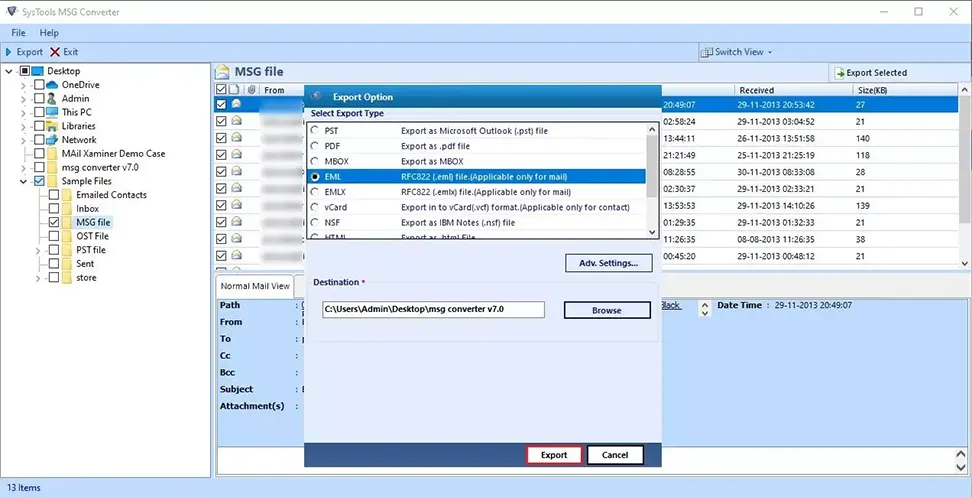
Simply by following the steps provided above, you will be able to export MSG emails, contacts, calendars, tasks, journals, etc. into EML file format. The tool ensures data security and integrity throughout the exportation procedure.
Convert MSG Data into EML on Mac Machine
If you are a Mac user, and finding it difficult to opt for an appropriate solution, then, your wait has come to an end.
Step 1. Firstly, on your Mac machine, properly download, install, and launch the tool.
Step 2. From here, click on the Add File(s) or Add Folder(s) button.
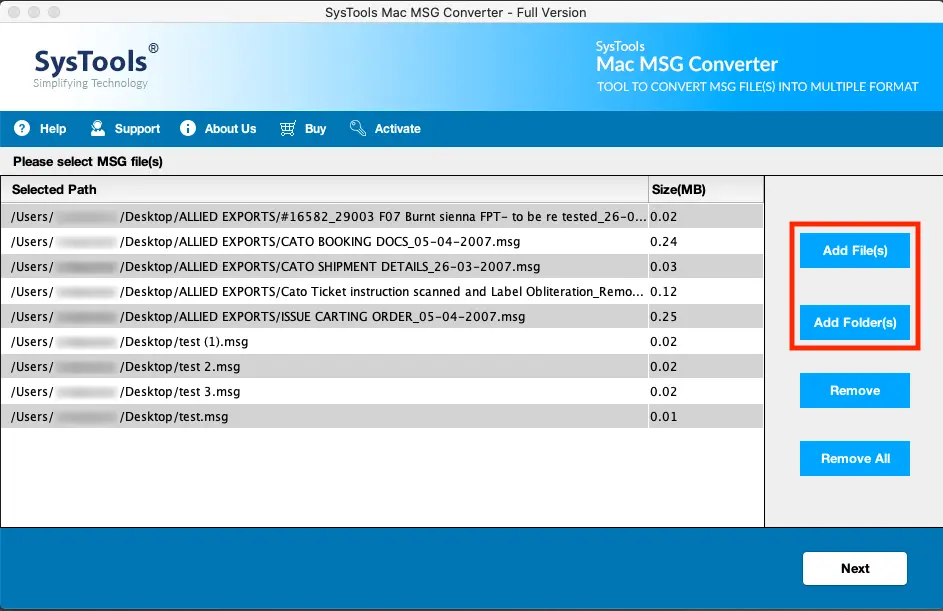
Step 3. Click on Change to select the destination location of the output files.
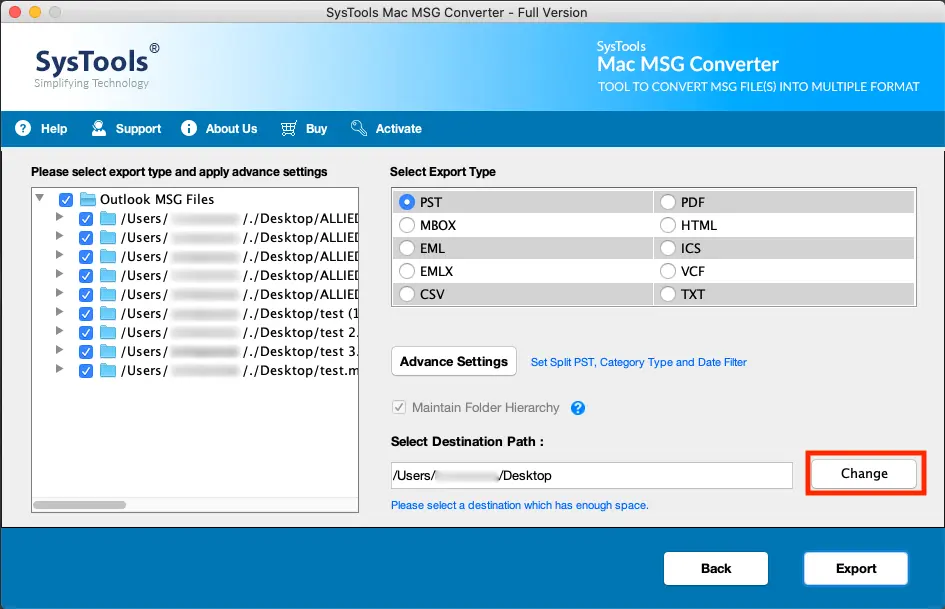
Step 4. Then, select the radio button adjacent to EML
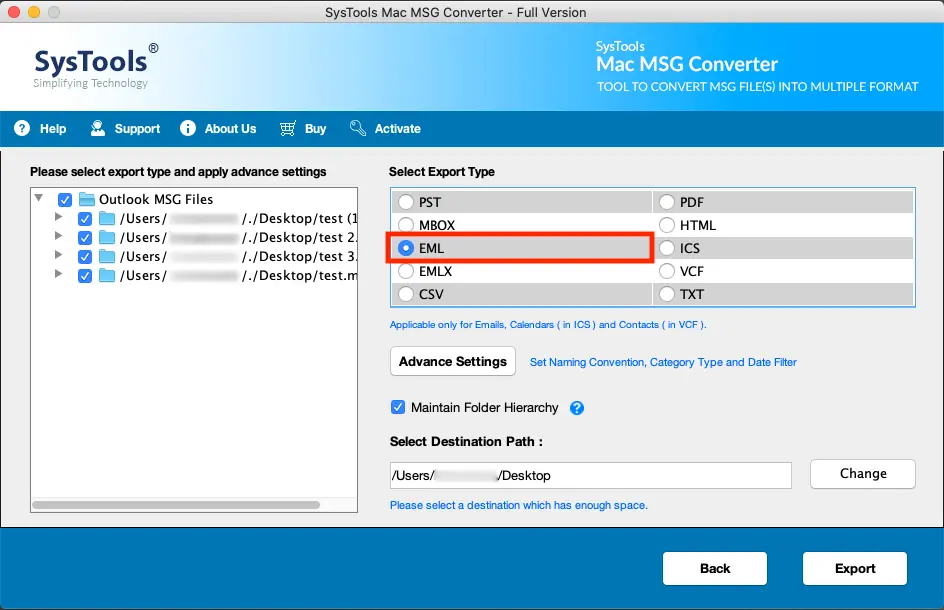
Step 5. Next, you can apply the filters by clicking on the Advance Settings
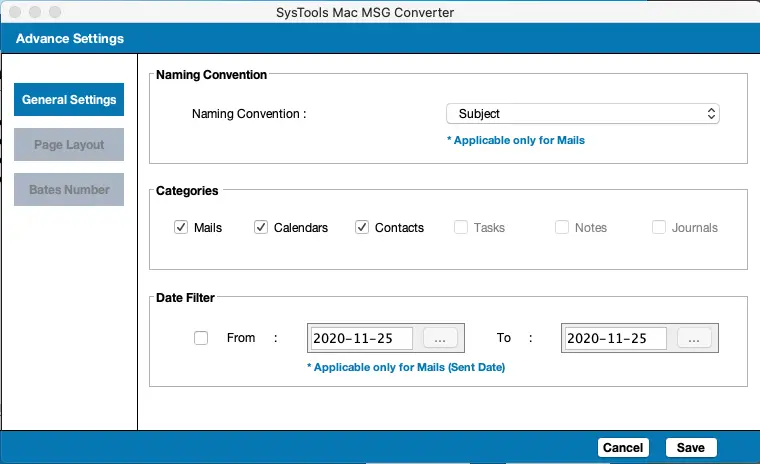
Step 6. At last click on the Export button to begin the exportation procedure.
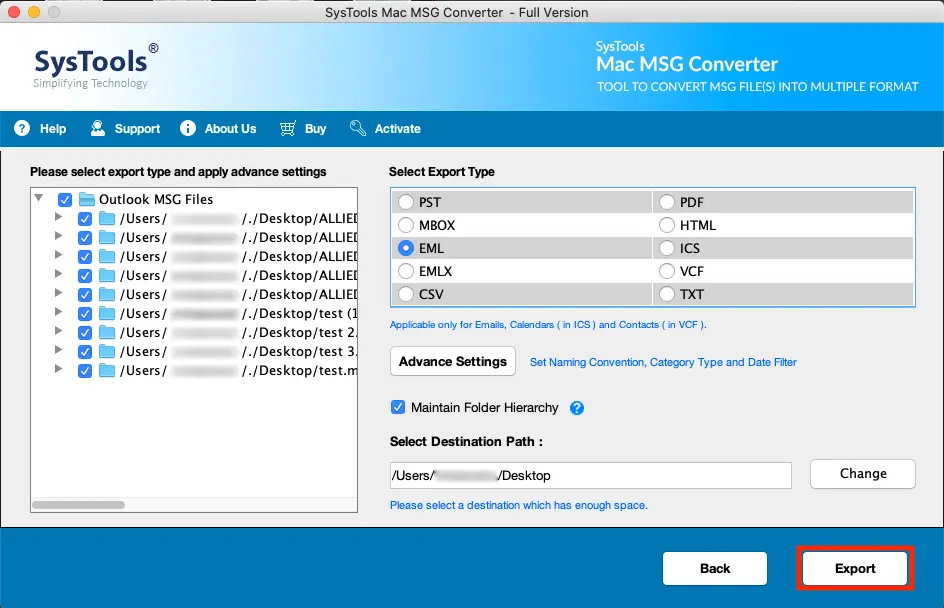
Users working on the Mac machines can follow the steps written above to perform the MSG to EML Mac conversion in an effortless manner.
Now, let us talk about some of the features offered by the tool.
Impeccable Characteristics of the Software
- Enables you to perform bulk conversion without altering any data.
- Facilitates filtering options for quick or selective exportation.
- Manages the folder structure and data integrity throughout.
- Renders an export report after the Outlook messages to EML procedure ends.
- Functional with all the versions of Windows and Mac OS, be it latest or prior.
The Final Verdict
In this write-up provided above, we have discussed the best ways to perform MSG to EML Conversion on both Mac and Windows OS. So, if you are working on any of these operating systems, then, this blog is certainly for you. The application stated above renders a demo version that can be availed without spending money.
 English
  Deutsch
  Español
  Français
  Italiano
  日本人
日本人 